prometheus+grafana替代Zabbix监控springboot

1.下载可视化模板
通过上文可知grafana为显示页面,所以本文提供一份监控springboot的json页面供大家下载。
链接:https://pan.baidu.com/s/1h5yrTsqUKj-Kq3GuHtNWow
提取码:ehbv
2.配置SpringBoot
1.修改pom
<?xml version="1.0" encoding="UTF-8"?>
<project xmlns="http://maven.apache.org/POM/4.0.0" xmlns:xsi="http://www.w3.org/2001/XMLSchema-instance"xsi:schemaLocation="http://maven.apache.org/POM/4.0.0 http://maven.apache.org/xsd/maven-4.0.0.xsd"><modelVersion>4.0.0</modelVersion><parent><groupId>org.springframework.boot</groupId><artifactId>spring-boot-starter-parent</artifactId><version>2.1.3.RELEASE</version><relativePath/> <!-- lookup parent from repository --></parent><groupId>com.dalaoyang</groupId><artifactId>springboot2_prometheus</artifactId><version>0.0.1-SNAPSHOT</version><name>springboot2_prometheus</name><description>springboot2_prometheus</description><properties><java.version>1.8</java.version></properties><dependencies><dependency><groupId>org.springframework.boot</groupId><artifactId>spring-boot-starter-actuator</artifactId></dependency><dependency><groupId>org.springframework.boot</groupId><artifactId>spring-boot-starter-web</artifactId></dependency><dependency><groupId>org.springframework.boot</groupId><artifactId>spring-boot-starter-test</artifactId><scope>test</scope></dependency><dependency><groupId>io.micrometer</groupId><artifactId>micrometer-registry-prometheus</artifactId><version>1.1.3</version></dependency></dependencies><build><plugins><plugin><groupId>org.springframework.boot</groupId><artifactId>spring-boot-maven-plugin</artifactId></plugin></plugins></build></project>
2.修改application.yml
management:endpoints:web:exposure:include: '*'metrics:tags:application: ${spring.application.name}health:redis:enabled: false
3.设置application
在启动问价中加入以下代码。
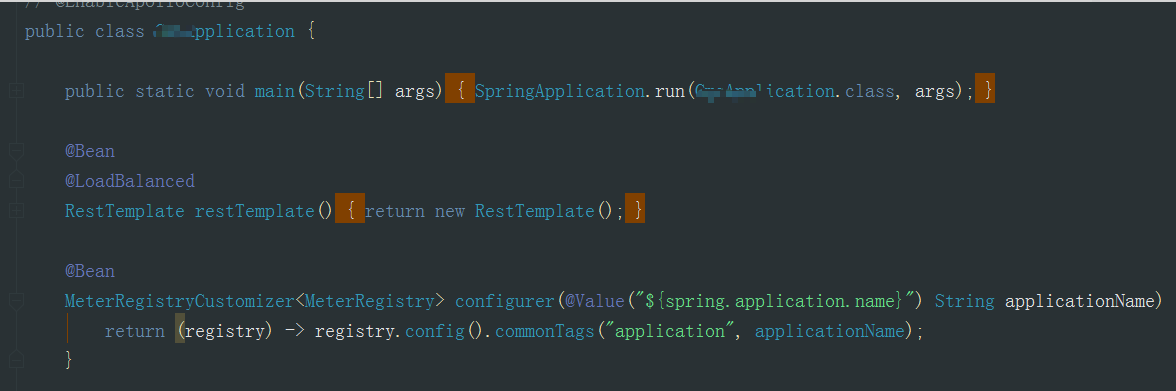
@BeanMeterRegistryCustomizer<MeterRegistry> configurer(@Value("${spring.application.name}") String applicationName) {return (registry) -> registry.config().commonTags("application", applicationName);}
SpringBoot项目到这里就配置完成了,启动项目,访问http://ip:8080/actuator/prometheus即可看到返回值,这些值就是spring boot返回在前台页面的信息。

3.Prometheus配置
在prometheus配置监控我们的SpringBoot应用,完整配置如下所示。找到配置文件替换即可。
# my global config
global:scrape_interval: 15s # Set the scrape interval to every 15 seconds. Default is every 1 minute.evaluation_interval: 15s # Evaluate rules every 15 seconds. The default is every 1 minute.# scrape_timeout is set to the global default (10s).# Alertmanager configuration
alerting:alertmanagers:- static_configs:- targets:# - alertmanager:9093# Load rules once and periodically evaluate them according to the global 'evaluation_interval'.
rule_files:# - "first_rules.yml"# - "second_rules.yml"# A scrape configuration containing exactly one endpoint to scrape:
# Here it's Prometheus itself.
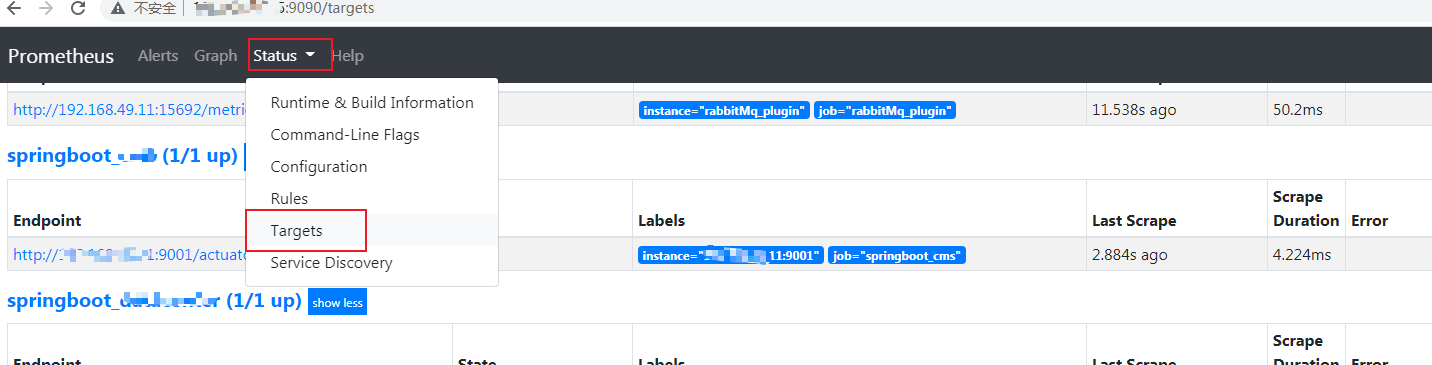
scrape_configs:# The job name is added as a label `job=启动Prometheus ,访问 ip:9090,然后按照下图操作,即可看到已经注册到Prometheus 的监控任务。
4.Grafana配置
输入ip:3000,可以进入grafana的可视化界面。
1.配置prometheus数据源 (ip:9090)
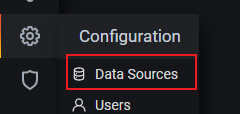
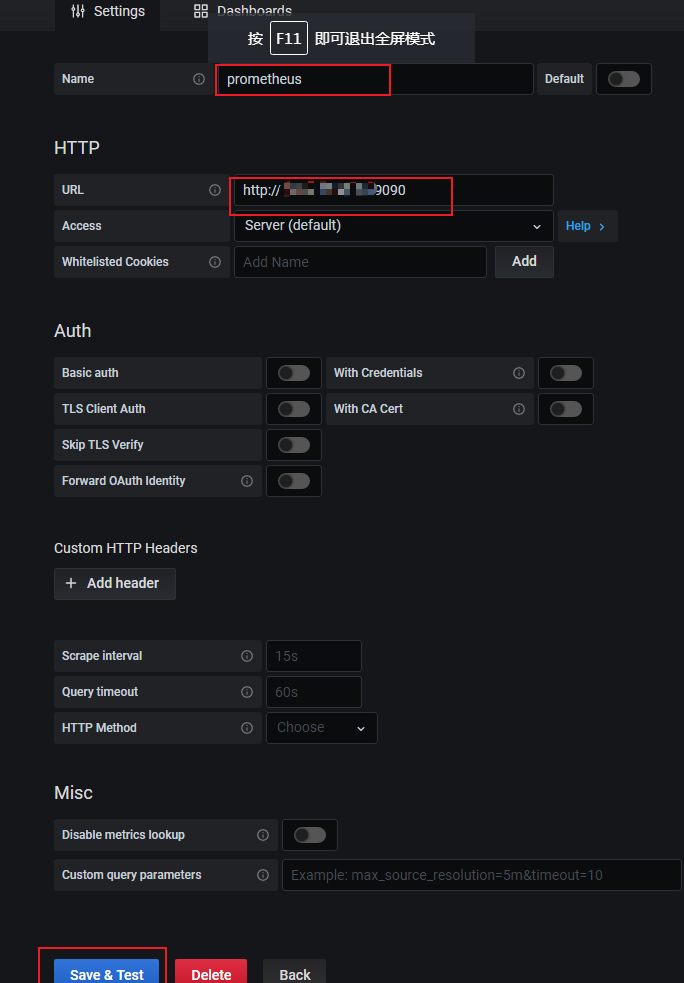
上图填写你prometheus地址,端口切记填写9090,点击save后,如果失败会有提示 。
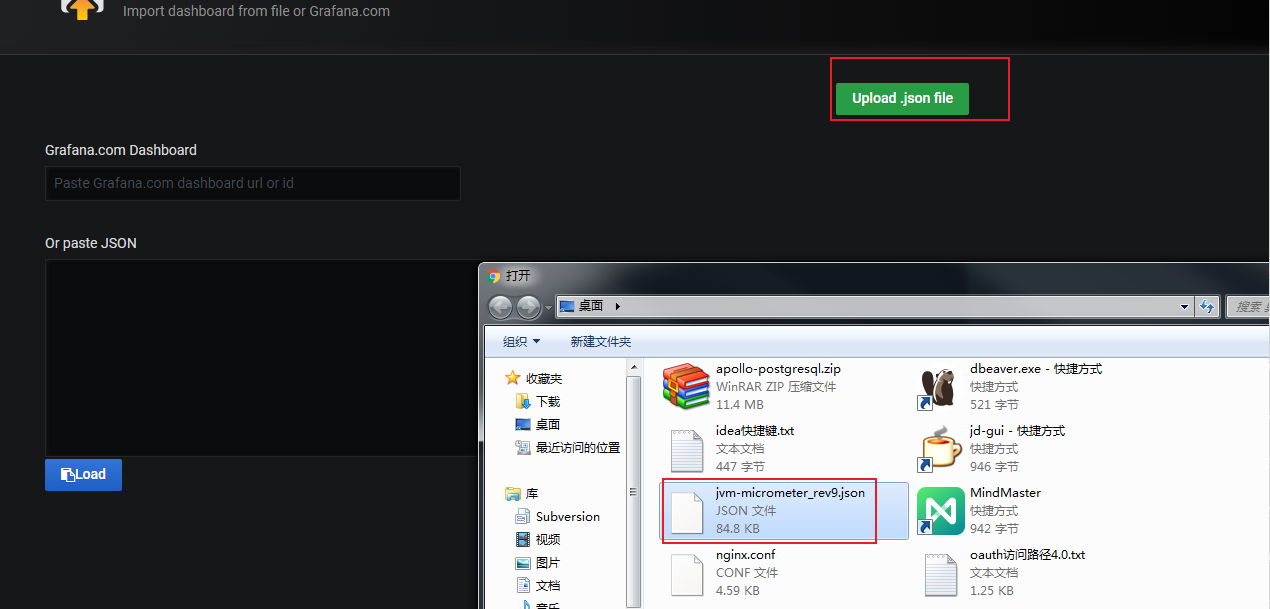
2.导入可视化模板
然后导入上文下载好的可视化界面模板。
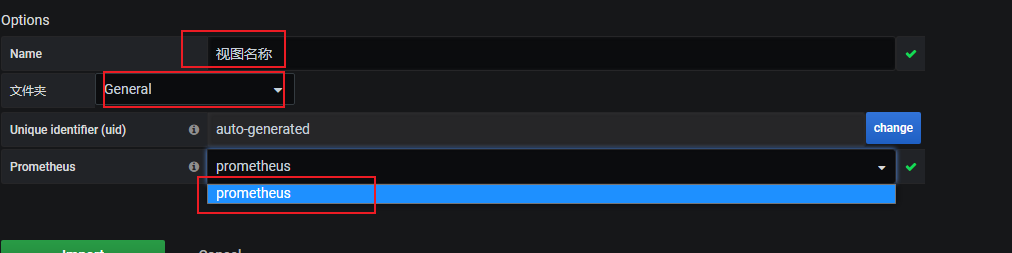
选择上文配置好的数据源,prometheus选项就是上文配置的数据源。
3.验证
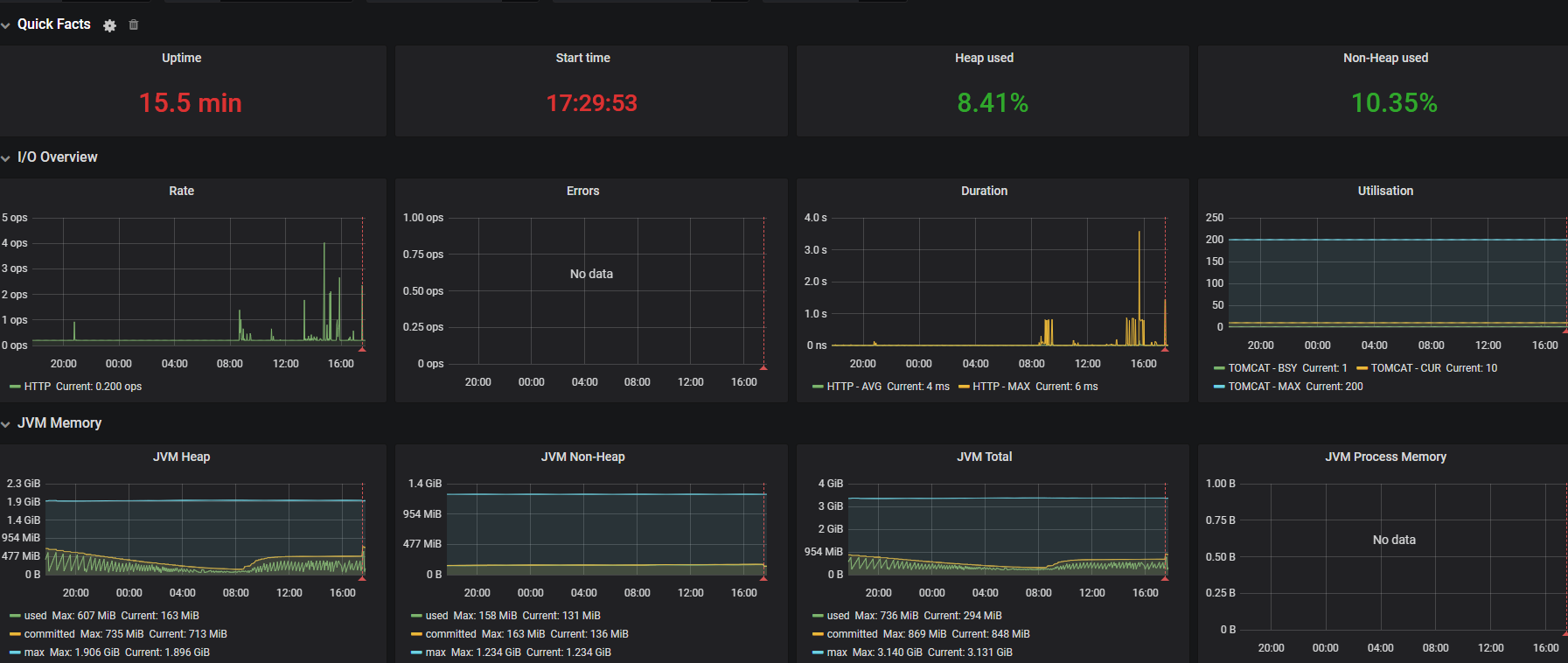
出现以上画面 配置完成!
本文来自互联网用户投稿,文章观点仅代表作者本人,不代表本站立场,不承担相关法律责任。如若转载,请注明出处。 如若内容造成侵权/违法违规/事实不符,请点击【内容举报】进行投诉反馈!