chrome V3 插件开发 基础
目录
- 准备
- popup
- 通信
- popup 发消息给 background
- popup 发消息给 content
- 长期连接
- 页面注入代码
- 如何页面上添加一个按钮?
- tabs.onUpdated
- content-script.js
- inject.js
- 如何修改页面背景图片?
- 右键菜单
- chrome.contextMenus
- 方法
- 事件
- 举个例子添加
- 关于报错(cannot create item with duplicate id XXX)]
小白学习chrome 插件开发,如果有什么不对的,请指教
注意: 用的是 chrome V3
准备
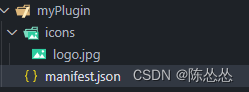
- 创建文件夹
myPlugin - 在
myPlugin文件中创建manifest.json文件 - 在
myPlugin文件中创建icons文件文件夹,并且在icons文件中准备一个图片
- 配置
manifest.json
更多参数配置可以查看官网:Manifest file format
{"name": "插件","version": "1.0","manifest_version": 3,"description": "学习chrome插件开发","author": "chenss","icons": {"16": "icons/logo.png","48": "icons/logo.png", "128": "icons/logo.png"}
}
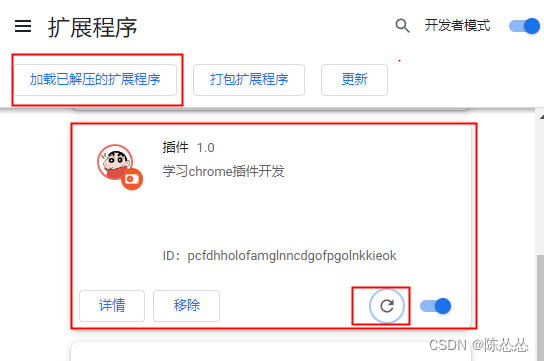
- 打开
管理扩展插件,把myPlugin添加进来就能看到了,如果图标不正确可以点击刷新,如果还不行请检查配置路径

准备工作就到这里了,如果你一切顺利,我们继续吧~
popup
创建 popup.html 和 popup.js
popup.html
DOCTYPE html>
<head><meta charset="utf-8" /><body><div>chenssdiv>body>
head>
配置 manifest.json
...
"action": {"default_popup": "popup.html"
}
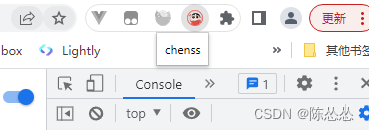
点击插件,就能弹出一个弹框啦~~~
通信
简单通信使用 runtime.sendMessage() 和 tabs.sendMessage()发消息,在接收端使用 runtime.onMessage 来接收消息。
在根目录新建content-script.js,配置 manifest.json
...
"action": {"default_popup": "popup.html"
},
"content_scripts": [{"matches": ["*://*/*","" ],"js": ["content-script.js"]}
],
"permissions": ["tabs"]
popup 发消息给 background
在 popup.html 添加按钮
<div><div class="box"><button id="backgroud">给bg发消息</button></div><script src="popup.js"></script>
</div>
popup 和 background 分别添加如下代码,
// popup.js
let sendBg = document.getElementById("backgroud");
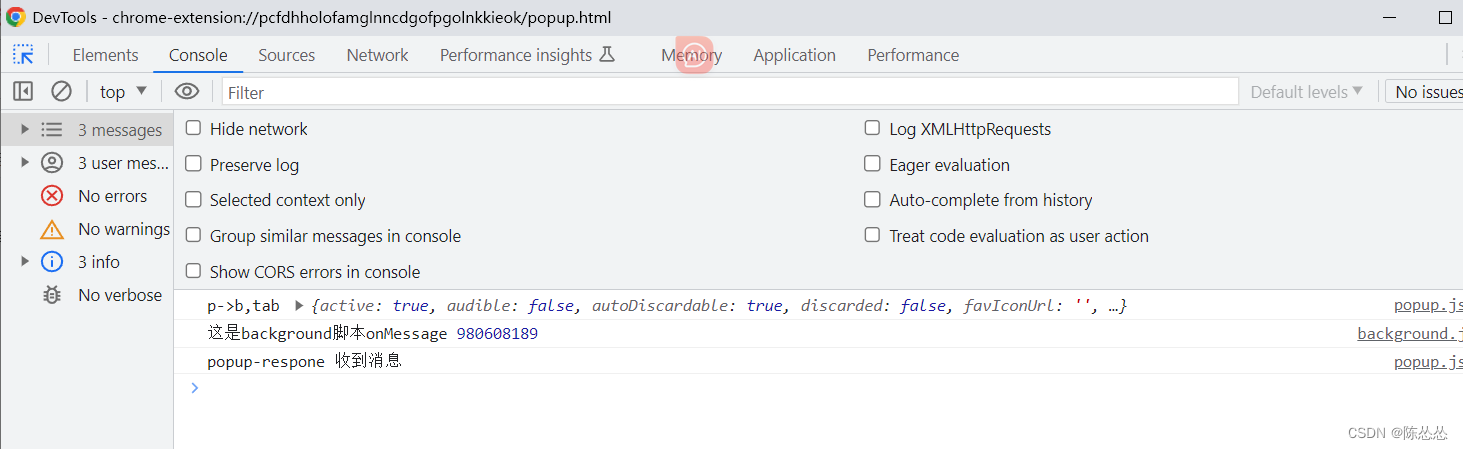
sendBg.onclick = async function () {const [tab] = await chrome.tabs.query({active:true,currentWindow:true})console.log('p->b,tab',tab)const respone =await chrome.runtime.sendMessage(tab.id)console.log('popup-respone',respone);
}
// background.js
chrome.runtime.onMessage.addListener((message, sender, sendResponse) => {console.log('这是background脚本onMessage', message);sendResponse("收到消息");
});
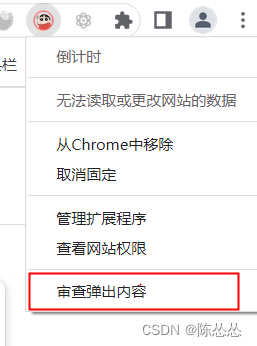
接下来我们看看效果:
点开这个地方
当然 你也可以使用 chrome.runtime.sendMessage 发消息
// popup.js
let sendBg = document.getElementById("backgroud");
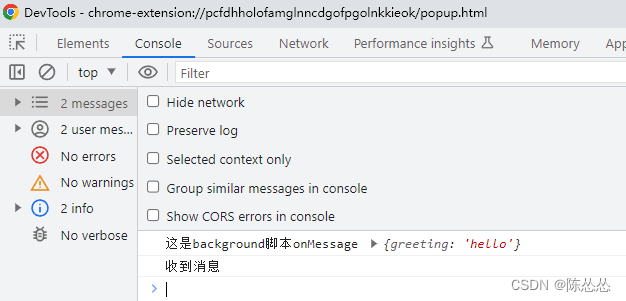
sendBg.onclick = async function () {chrome.runtime.sendMessage({greeting:"hello"}, function(response) {console.log(response);
}
popup 发消息给 content
- 同样在
popup.html添加按钮 popup和background分别添加如下代码
// popup.js
let sendContent = document.getElementById("sendContent");
sendContent.onclick = async function () {const [tab] = await chrome.tabs.query({active:true,currentWindow:true})console.log('p->b,tab',tab)const respone =await chrome.tabs.sendMessage(tab.id, {greeting: "hihihihihi"})console.log('popup-respone',respone);
}
// content-script.js
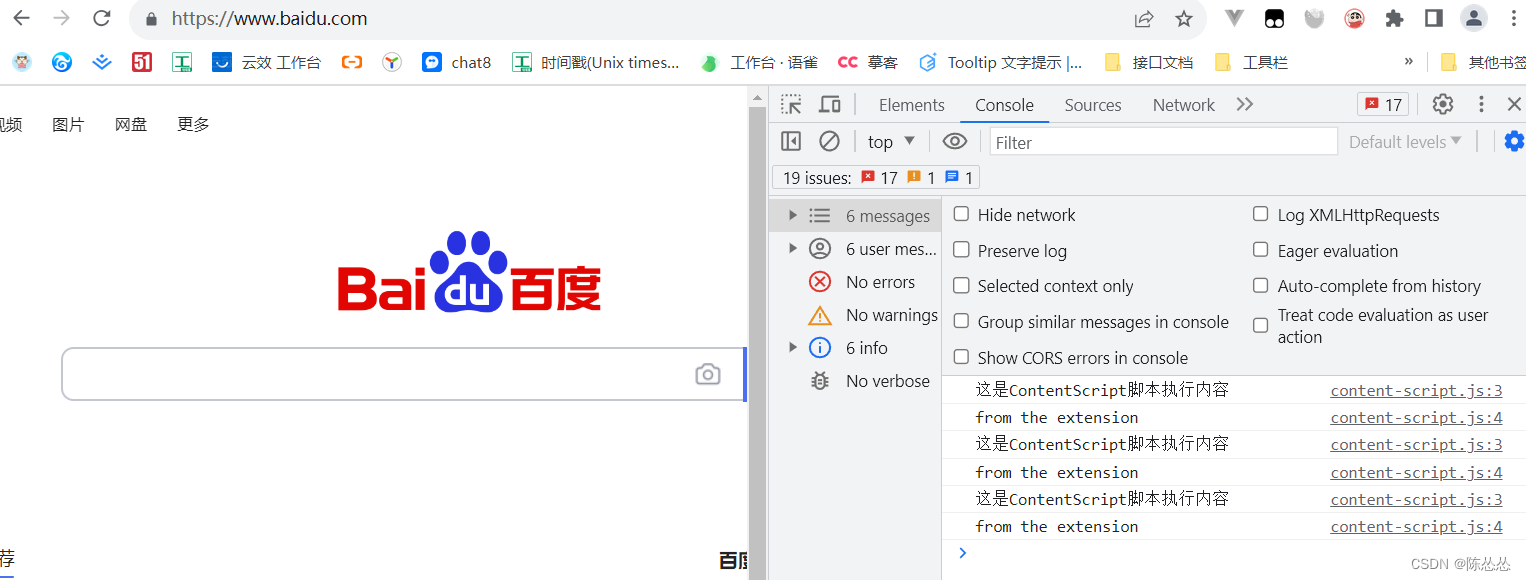
chrome.runtime.onMessage.addListener(function (request, sender, sendResponse) {console.log('这是content-script脚本执行内容');console.log(sender.tab ?"from a content script:" + sender.tab.url :"from the extension");}
);
随便打开一个网站 你就能看到 输出内容
简单通信就不再这里过多描述了,可以参考这个文章或者是文档:
Chrome插件:浏览器后台与页面间通信
长期连接
有的时候需要长时间通信,以上方法显然不合适。需要使用 runtime.connect 或 tabs.connect。
建立连接时,两端都将获得一个 runtime.Port 对象,用来通过建立的连接发送和接收消息。
更多详细内容可以看文档,本次只用runtime.connect举列子。
- 同样在
popup.html添加按钮 popup和background分别添加如下代码
// popup.js
// 长期链接 发消息给bg
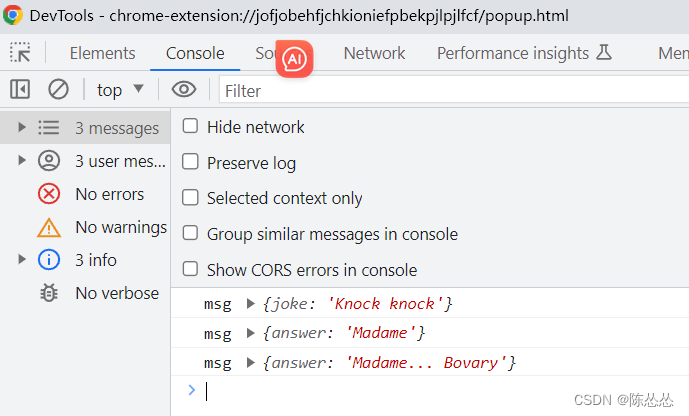
longLink.onclick = async function () {var port = chrome.runtime.connect({ name: "knockknock" });port.postMessage({ joke: "Knock knock" });port.onMessage.addListener(function (msg) {if (msg.question === "Who's there?") port.postMessage({ answer: "Madame" });else if (msg.question === "Madame who?")port.postMessage({ answer: "Madame... Bovary" });});
};
// background.js
chrome.runtime.onConnect.addListener(function(port) {console.assert(port.name === "knockknock");port.onMessage.addListener(function(msg) {console.log('msg',msg);if (msg.joke === "Knock knock")port.postMessage({question: "Who's there?"});else if (msg.answer === "Madame")port.postMessage({question: "Madame who?"});else if (msg.answer === "Madame... Bovary")port.postMessage({question: "I don't get it."});});
});
当从 background 向 content scripts 发送建立连接请求时,若目标 tab 中存在多个 iframe ,且 content scripts 注入到了每个 iframe 中,则每个 iframe 中的 runtime.onConnect 事件都会被触发。同样的,也可能会出现多个 iframe 中的runtime.connect() 一起调用的情况。
页面注入代码
如何页面上添加一个按钮?
tabs.onUpdated
使用 tabs.onUpdated , 再次强调一下需要配置permissions: [‘tabs’],并且需要重新加载插件,如重新加载还是无法生效,请移除插件重新导入
在background.js 代码如下:
//background.js
chrome.tabs.onUpdated.addListener(async function(tabId,changeInfo,tab){console.log('tabs.onUpdated',tabId,changeInfo,tab);if (!tab.url &&changeInfo.status !=='complete') return;sendContent(tabId,{action:"inject"})
});
content-script.js
// content-script.js
chrome.runtime.onMessage.addListener(function (request, sender, sendResponse) {var tmp = document.createElement("script");tmp.src = chrome.runtime.getURL("./inject.js");tmp.setAttribute("type", "text/javaScript");document.head.appendChild(tmp);
});
inject.js
manifest.json 中配置
"web_accessible_resources": [ {"resources": ["inject.js"],"matches": [ "*://*/*" ]}],
“matches”:字符串数组,每个字符串都包含一个匹配模式,指定哪些站点可以访问这组资源。仅使用来源来匹配 URL。例如"matches": [ "http://*/*" ] 这样配置的话,https开头网址的页面上看不到按钮。当然可以利用正则匹配网页地址。
//inject.js
var div_child=''
var c=document.querySelector("body > div");
c.innerHTML+=div_child;let injectBtn = document.getElementById("div_child_1");
injectBtn.onclick= function(){alert("点击了自定义的按钮")
}
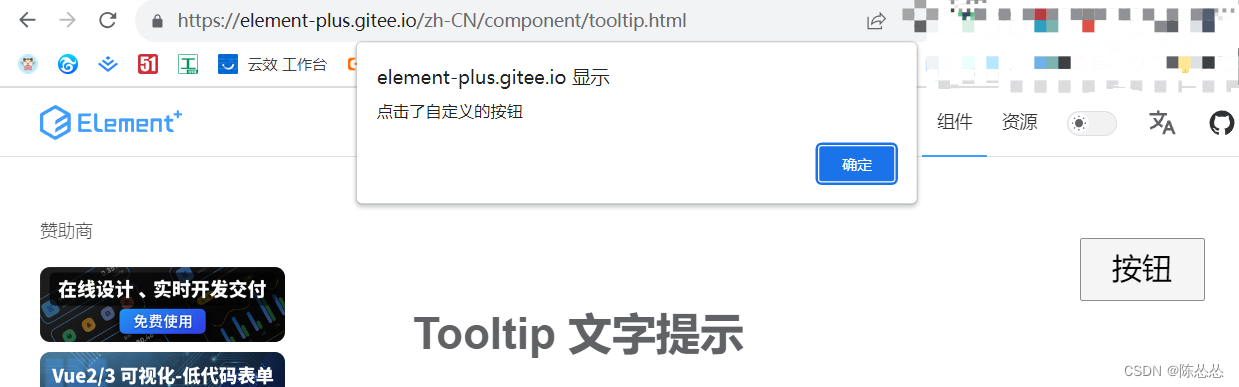
如何修改页面背景图片?
popup.html 中添加一个按钮
<button id="changeBg">更换背景button>
popup.js
// popup.js
// 更换背景图片
let changeBg = document.getElementById("changeBg");
changeBg.onclick = async function () {var imgurl = chrome.runtime.getURL("image/64d8c0109f9d8cc997e23b67eb9a2b7d.png");const [tab] = await chrome.tabs.query({ active: true, currentWindow: true });chrome.scripting.executeScript({target: { tabId: tab.id },args: [imgurl],function: function(event){document.body.style.backgroundAttachment = 'fixed';document.body.style.backgroundSize = '100% 100%';document.body.style.backgroundImage = 'url(' + event + ')'},});
};
在项目的manifest.json文件的permissions中加上scripting
"permissions": ["tabs","scripting"
]
ok,来看看效果吧~
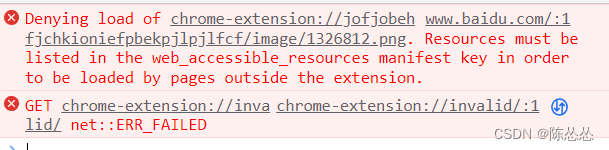
很好报错了,原因是:没有在扩展的 manifest.json 文件中正确地声明图片资源 。
在 manifest.json 文件中,需要添加一个名为 “web_accessible_resources” 的键(key),并将要访问的图片资源路径添加到其值(value)中:
"web_accessible_resources": [{     "resources": ["image/*",],}
],
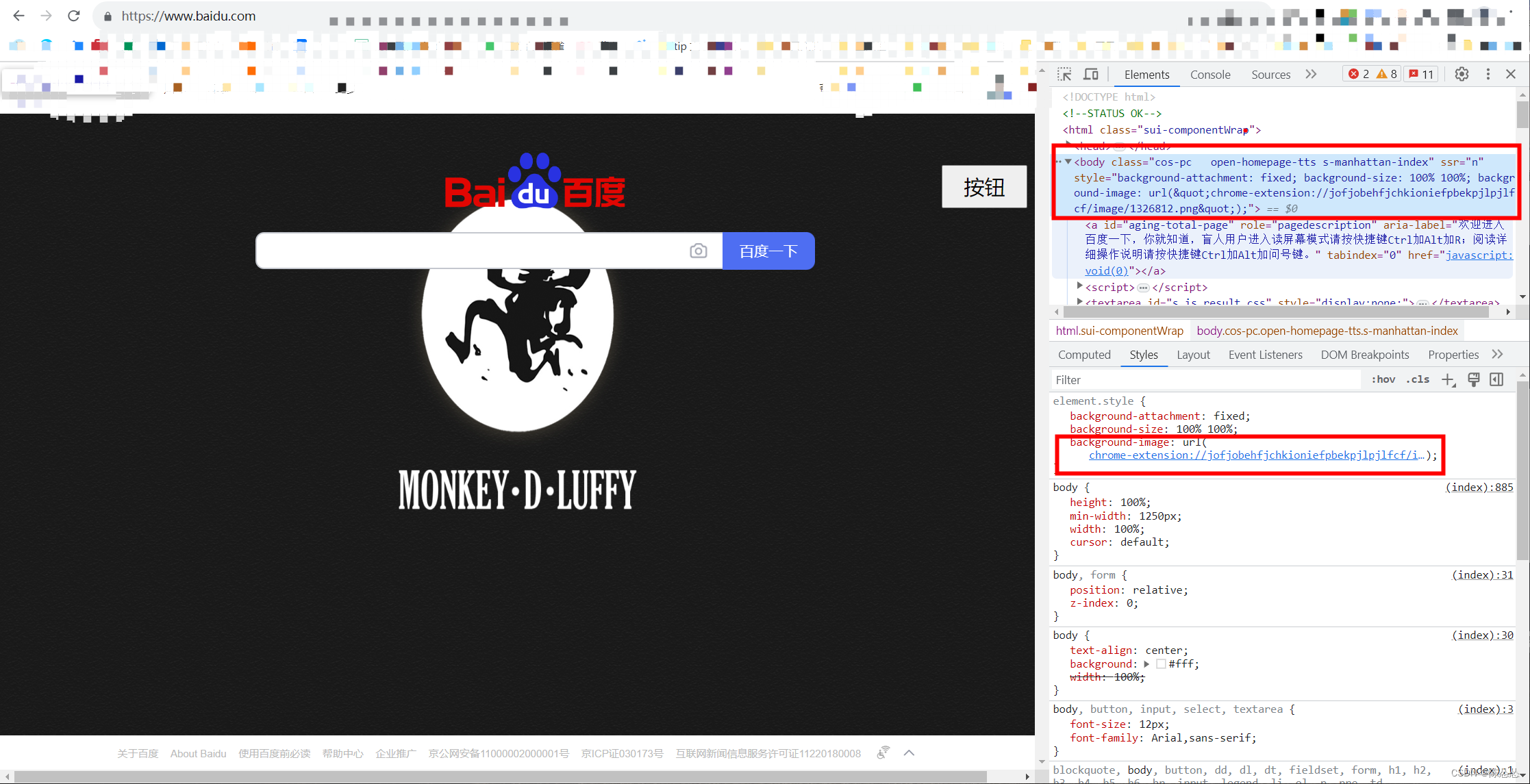
ok 完美~
右键菜单
chrome.contextMenus
chrome.contextMenus 文档地址
在项目的manifest.json文件的permissions中加上contextMenus
"permissions": ["contextMenus"
]
方法
创建菜单方法如下,属性具体请看文档,下面只是列举了几个常用的属性:
chrome.contextMenus.create({type: 'normal',title: 'Menu Demo',id: 'menuDemo',//要分配给此项的唯一 ID。活动页面的强制性。不能与此扩展的另一个 ID 相同。contexts: ['all'],enabled:true,//是否启用或禁用此上下文菜单项。默认值为trueparentId:""//父菜单项的 ID; 这使该项成为以前添加的项的子项。onclick: genericOnClick //点击事件,跟的就是处理的方法名,如genericOnClick,就是对应的一个function
}, function () {console.log('contextMenus are create.');
});
其它方法包括 remove,removeAll,update。在此不赘述,可以看文档,下面的列子中也有使用。
事件
单击上下文菜单项时触发使用chrome.contextMenus.onClicked
chrome.contextMenus.onClicked.addListener(callback: function,
)
举个例子添加
background.js 里面添加如下代码
//background.js
chrome.runtime.onInstalled.addListener(() => {createMenus()
});
// 自定义右键菜单
function createMenus() {chrome.contextMenus.create({title: "菜单操作-events", //菜单的名称id: "01", //一级菜单的idcontexts: ["page"], // page表示页面右键就会有这个菜单,如果想要当选中文字时才会出现此右键菜单,用:selection});chrome.contextMenus.create({title: "removeAll",id: "02",contexts: ["page"],});chrome.contextMenus.create({title: "更新菜单",id: "03",contexts: ["page"],});chrome.contextMenus.create({title: "删除菜单",id: "04",contexts: ["page"],});chrome.contextMenus.onClicked.addListener((info, tab) => {if (info.menuItemId == "01") {//跳转页面chrome.tabs.create({url:"https://www.baidu.com/" });} else if (info.menuItemId == "02") {//移除此扩展插件添加的所有上下文菜单项。chrome.contextMenus.removeAll();} else if (info.menuItemId == "03") {//更新菜单chrome.contextMenus.update("03",{type: 'checkbox',title: "更新之后菜单", //菜单的名称checked: false,});}else if (info.menuItemId == "04") {//删除指定菜单chrome.contextMenus.remove("04",()=>{});}});
}
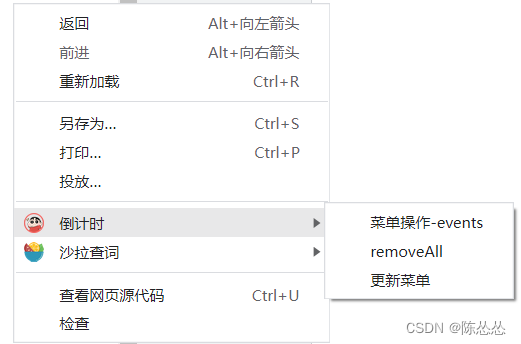
这样就添加成功了
关于报错(cannot create item with duplicate id XXX)]
例如:一开始的时候在onUpdated 周期添加菜单
chrome.tabs.onUpdated.addListener(async function(tabId,changeInfo,tab){chrome.contextMenus.create({...})
});
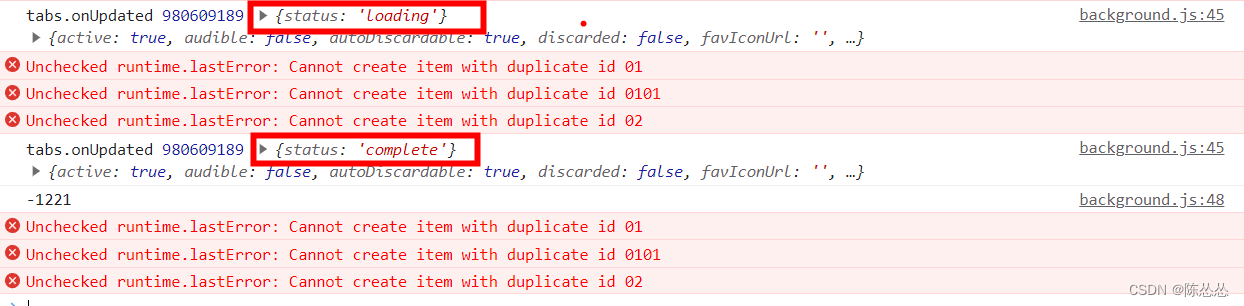
每次刷新页面的时候就会出现这个重复添加的错误:
是因为 onUpdated 状态是loading 和 complate 的时候重复添加了,当然可以判断一下加载状态,再去创建。
如果你通过通信方式添加菜单也需要注意,也会存在这个问题。
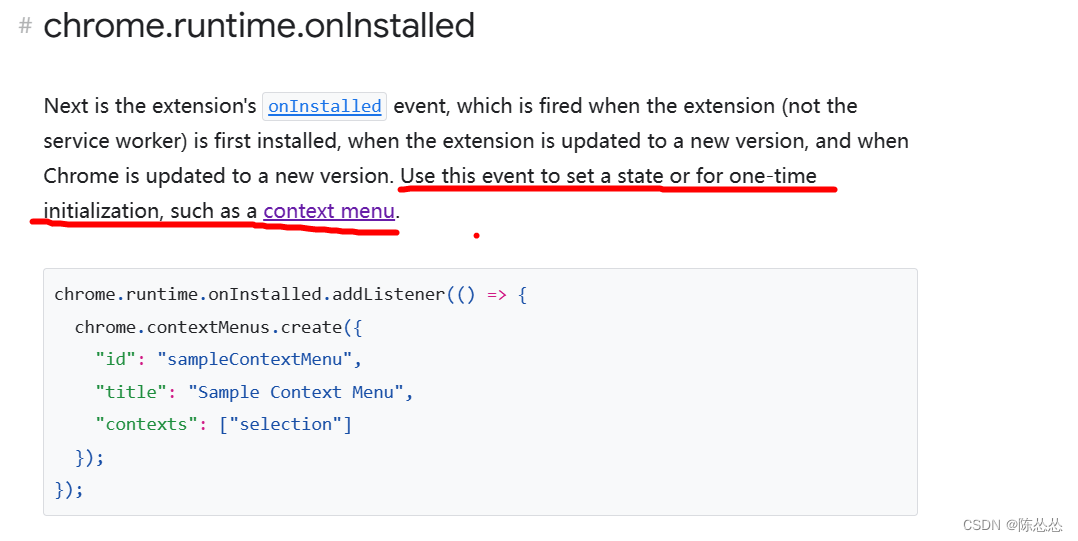
关于这个文档里有说(使用此事件(onInstalled)可以设置状态或进行一次性初始化,例如上下文菜单。):
未完待续👻👻👻👻👻👻👻👻
本文来自互联网用户投稿,文章观点仅代表作者本人,不代表本站立场,不承担相关法律责任。如若转载,请注明出处。 如若内容造成侵权/违法违规/事实不符,请点击【内容举报】进行投诉反馈!