C# 实现支付扫码支付功能
一、内容介绍
本次学习的内容是在winform窗体项目中实现的一个功能——支付宝扫码支付;
主要功能通过支付宝包向我们提供的SDK程序包,与支付宝沙箱中的验证/调试接口功能实现;
二、环境准备
1、首先进入支付宝开放平台;
https://open.alipay.com/platform/home.htm
2、手机使用支付宝扫码登录
3、如果是第一次使用的同学 点击 注册
4、进行实名验证;
5、成功之后进管理平台,找到控制台中的沙箱 ;
6、进入沙箱之后会自动生成我们应用的基本信息;
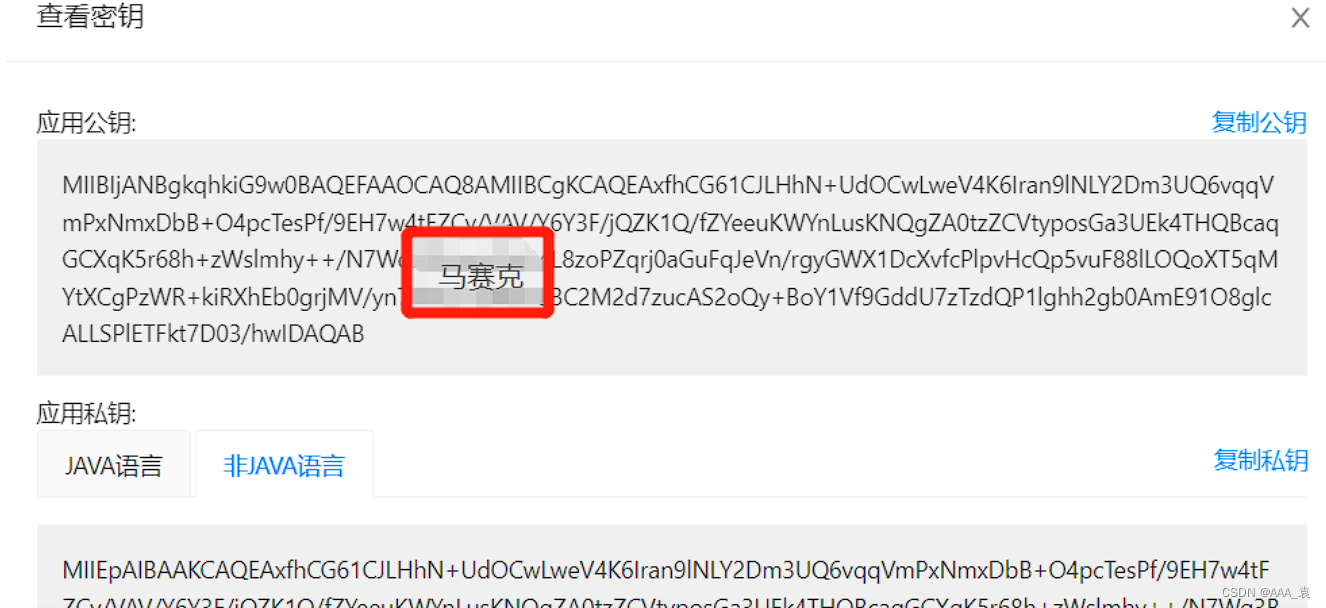
7、其中《APPID》、《支付宝网关地址》与开发信息中的点击系统默认密钥的《查看》中生成的密钥都是我们后期代码中需要的参数;直接C下来(参数中的一个字母都不能错);
8、这里是我们的三个密钥,因为我们是C#项目所以《应用私钥》选择非Java语言;先不管C就完了;

三、程序包导入
1、在控件属性中将《PictureBox》控件中的Size Mode属性改成Zoom,用于生成二维码时填充整个控件;
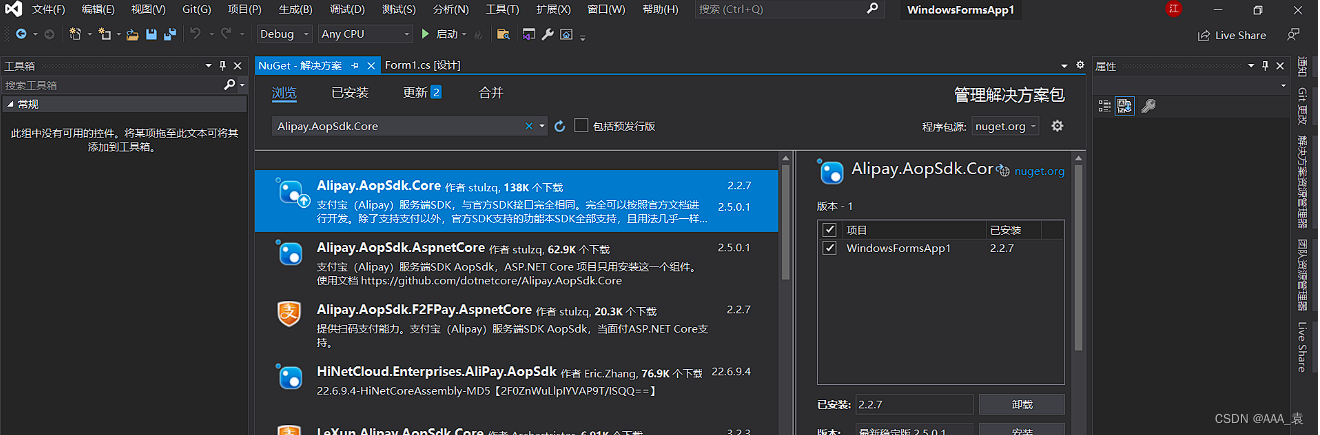
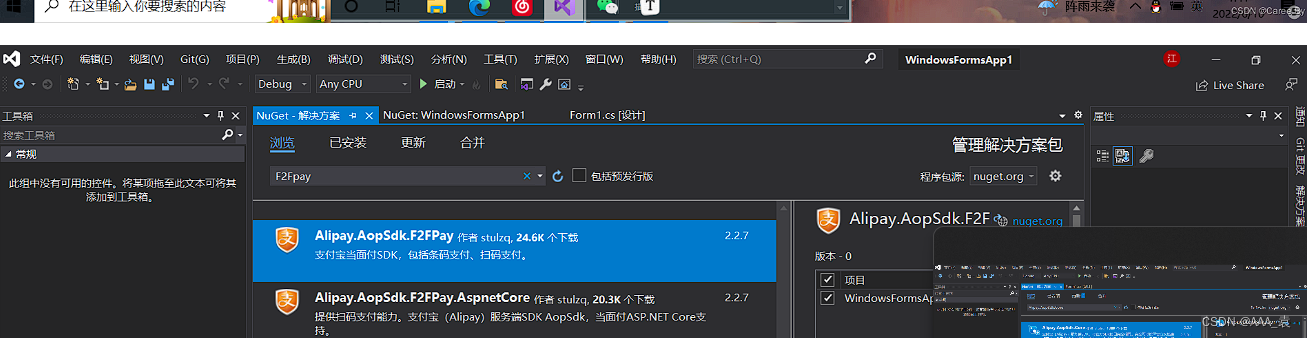
3、在《NeGet》中 搜索《Alipay.AopSdk.Core》和《Alipay.AopSdk.F2F》这两个由支付宝提供程序包;
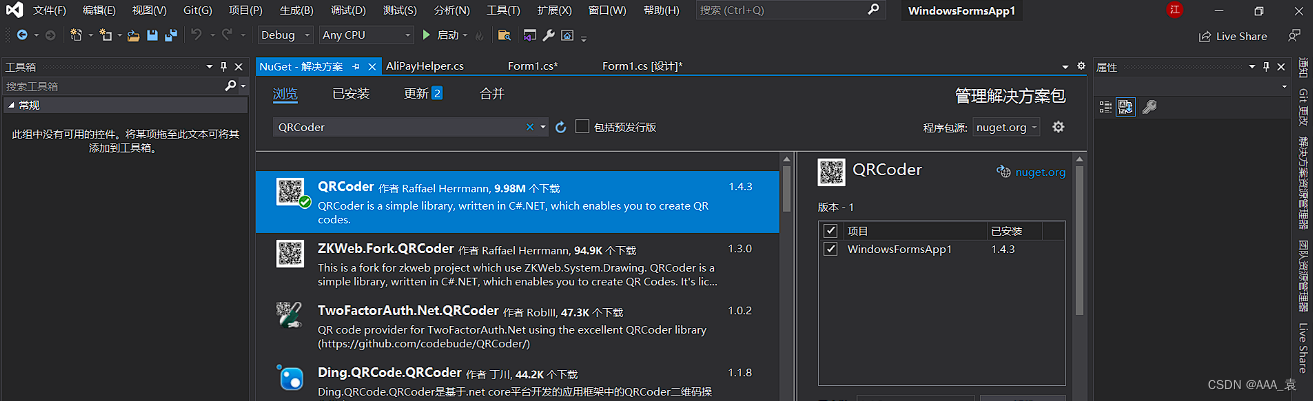
4、继续搜索《QRCoder》程序包;
5:代码
using Alipay.AopSdk.Core;
using Alipay.AopSdk.Core.Request;
using Alipay.AopSdk.Core.Response;
using System;
using System.Threading;
using System.Windows.Forms;namespace Start_Form
{class AliPayHelper{public static String Text1;//公共参数public static IAopClient client = new DefaultAopClient(AliPayConfigs.serverUrl, AliPayConfigs.appId, AliPayConfigs.merchant_private_key, AliPayConfigs.json, AliPayConfigs.version, AliPayConfigs.sign_type, AliPayConfigs.alipay_public_key, AliPayConfigs.charset, false);public class AliPayConfigs{public static string alipay_public_key = "填这里面";//支付宝公钥public static string merchant_private_key = "填这里面";//商户私钥--应用私钥public static string appId = "填这里面";//商户的APPIDpublic static string serverUrl = "填这里面"; // 网关地址public static string charset = "utf-8"; // 不用改!public static string sign_type = "RSA2"; // 不用改!public static string json = "json"; // 不用改!public static string version = "1.0"; // 不用改!}public static String Text1;public static void Query(){new Thread(() => {int i = 0;AlipayTradeQueryRequest request = new AlipayTradeQueryRequest();request.BizContent = "{" +"\"out_trade_no\":\"" + Text1 + "\"" +"}";while (true){Thread.Sleep(1000);AlipayTradeQueryResponse response = client.Execute(request);if (response.Code == "10000"){MessageBox.Show("支付成功!");break;}}}).Start();}}
}
using System;
using System.Collections.Generic;
using System.ComponentModel;
using System.Data;
using System.Drawing;
using System.Linq;
using System.Text;
using System.Threading.Tasks;
using System.Windows.Forms;
using Alipay.AopSdk.Core.Domain;
using Alipay.AopSdk.Core.Request;
using Alipay.AopSdk.Core.Response;
using QRCoder;
using static WindowsFormsApp1.AliPayHelper;namespace WindowsFormsApp1
{public partial class Form1 : Form{public Form1(){InitializeComponent();}private void button1_Click(object sender, EventArgs e){AliPayHelper.Text1 = textBox1.Text; // 获取订单编号 传给Query 否则报错AlipayCode(); // 生成二维码Query(); // 支付回调}public void AliPayCode(){AlipayTradeWapPayRequest request = new AlipayTradeWapPayRequest();AlipayTradeAppPayModel aliPayRequest = new AlipayTradeAppPayModel()//这个类内容在最下面{OutTradeNo = textBox1.Text,// 订单号号,商户订单号(注:订单号要唯一)TotalAmount = textBox2.Text,//订单金额Subject = "随便填",//标题Body = "随便填",ProductCode = "QUICK_MSECURITY_PAY",};request.SetBizModel(aliPayRequest);AlipayTradeWapPayResponse response = client.SdkExecute(request);if (response.IsError == true){MessageBox.Show("唤起支付宝二维码失败,请联系开发人员");this.Close();}else{string payaddress = AliPayConfigs.serverUrl + "?" + response.Body;QRCodeGenerator qrGenerator = new QRCoder.QRCodeGenerator();QRCodeData qrCodeData = qrGenerator.CreateQrCode(payaddress, QRCodeGenerator.ECCLevel.L);QRCode qrcode = new QRCode(qrCodeData);pictureBox1.Image = qrcode.GetGraphic(5, Color.Black, Color.White, null, 15, 6, false);//将字符串生成二维码图片//pictureBox1的SizeMode属性设为:Zoom表示图片填充}}}
}
本文来自互联网用户投稿,文章观点仅代表作者本人,不代表本站立场,不承担相关法律责任。如若转载,请注明出处。 如若内容造成侵权/违法违规/事实不符,请点击【内容举报】进行投诉反馈!